
How to Create Custom Foods
Learn how to create, configure serving sizes for, and save custom food entries in Gympal.
Gympal allows you to create custom foods when an item is not available in the public database or when you want to customize an existing entry.
This guide covers how to create your own custom food products, set correct serving sizes, and input nutrition data.
Accessing the Custom Food Screen
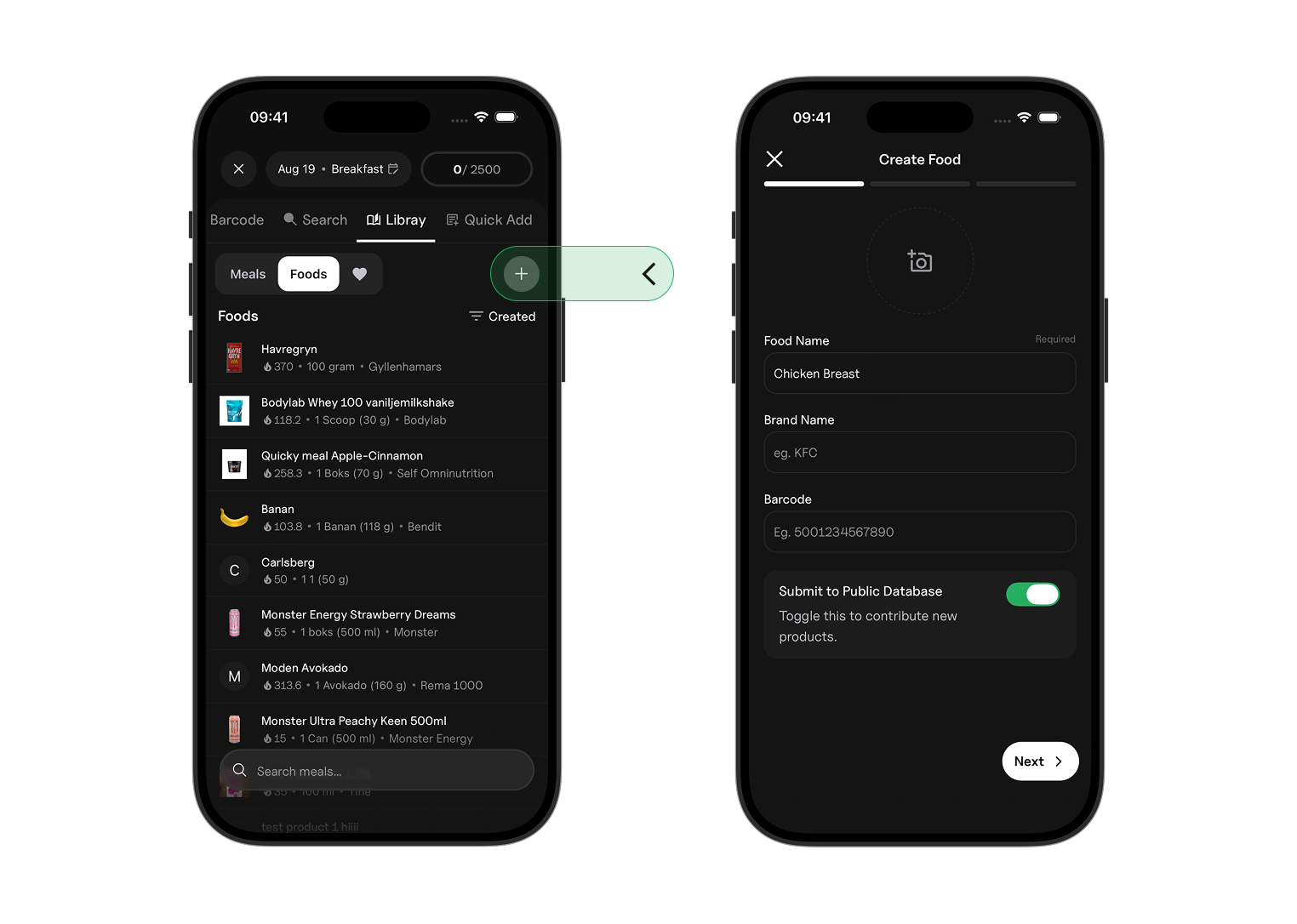
To open the screen to create your own custom food products:
- Tap the + icon in the bottom tab bar to start the food logging process. Then select any of the food logging shortcuts.
- Tap Library.
- Tap the + button next to the heart icon.
General Information
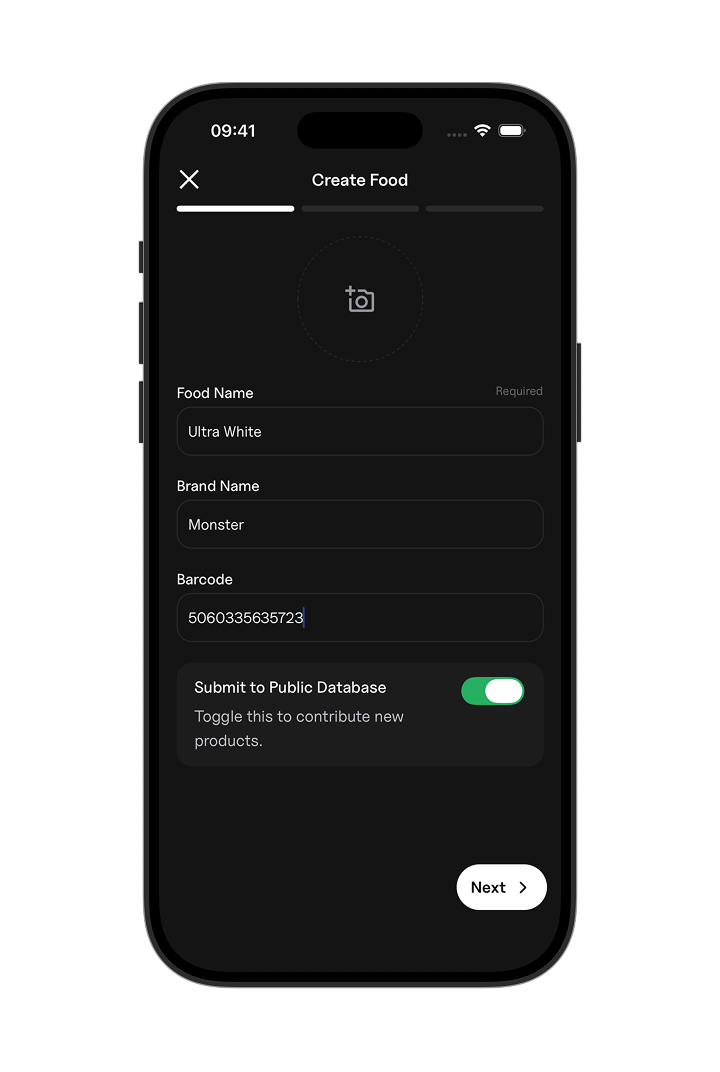
The first screen collects identifying details for your item:
- Food Name: The name of the item (for example, "Strawberry Smoothie").
- Brand Name: The brand or restaurant (for example, "Smoothie Shop").
- Barcode: Barcode associated with the product.
Submitting to the Public Database
To share your food with all users, toggle on Submit to Public Data.
-
Visibility: Once submitted, the food entry becomes publicly available in the global database.
-
Editing: Public entries cannot be modified directly. Any edits you make later are submitted to a queue for community review before the changes take effect.
Submitting an entry transfers ownership to the public database. Only submit foods with accurate, complete nutrition labels.
Serving Size
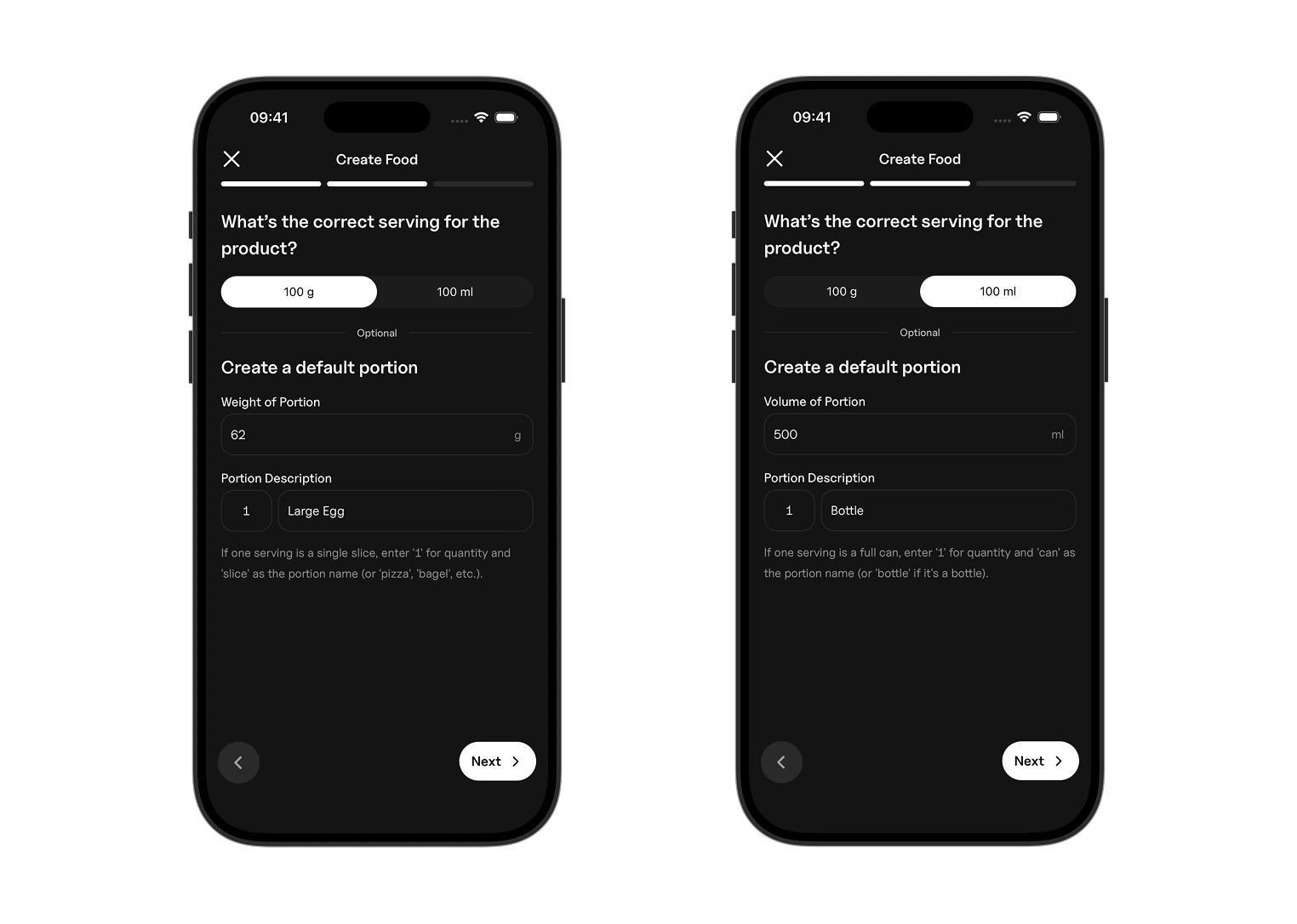
Select how you want to define the base unit for your nutrition data: Per 100g or Per 100ml.
Use these options to enter values based on standard 100g or 100ml nutrition labels.
- For mass (100g): If an egg weighs 62g, set the portion quantity to
1, the portion name toegg, and the weight to62. - For volume (100ml): If a bottle holds 500ml, set the portion quantity to
1, the portion name tobottle, and the volume to500ml.
This lets you log by portion (for example, "1 egg" or "1 bottle") without converting units manually.
Entering Nutrition Information
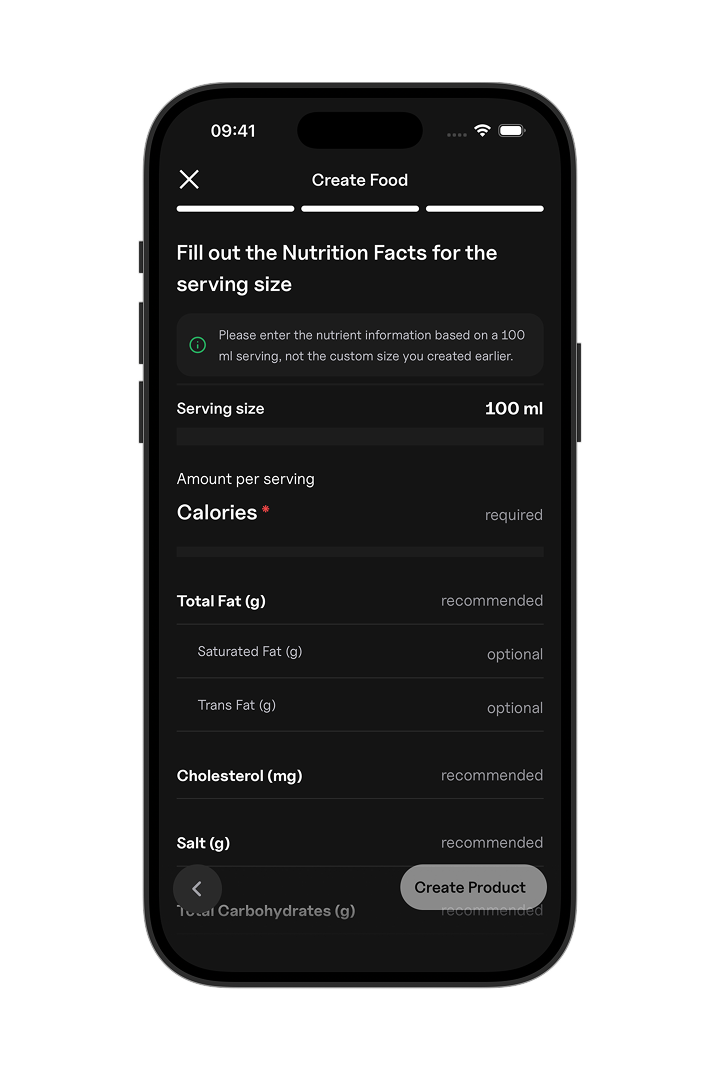
Finally, enter the nutrition information for your item.
Even if you define a custom serving size, you must enter the actual nutrition data per 100g or 100ml, not the size you created.
Only the calories are required to create the product.
Saving Your Custom Food
Once you have entered your data:
- Tap Create to save the item to your library