
How to Log Food Products
Learn how to track food products in the food logger.
Logging food products updates your daily nutrition targets. You can search the food database, scan barcodes, or use Quick Add for custom macros.
This guide explains how to find items, choose serving sizes, adjust logging dates or meals, and save items to your food log.
Finding a Food Product
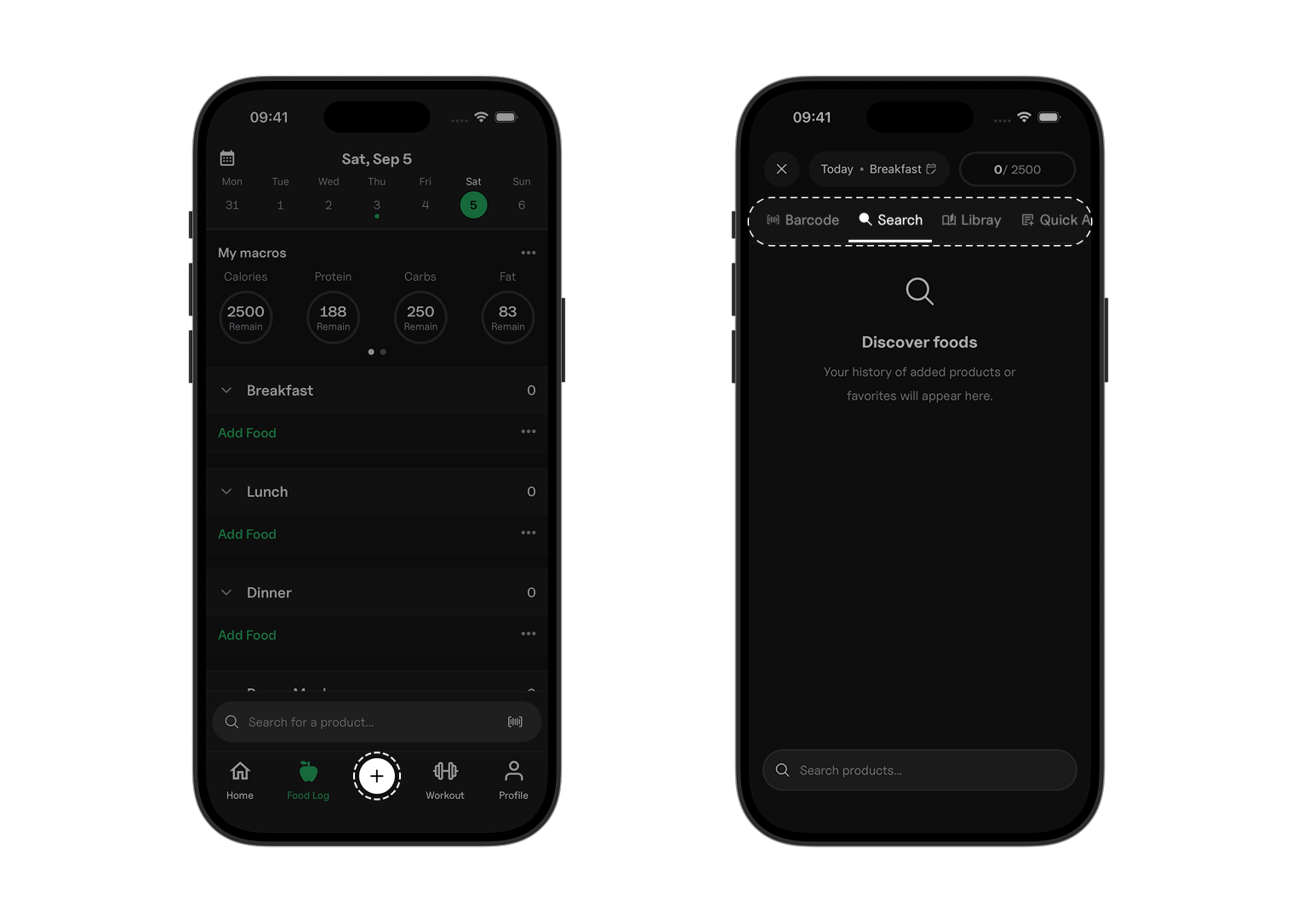
To open the food search screen:
- Tap + on the bottom tab bar.
- Select a food logging shortcut to open the search bar.
Searching for a Food Product
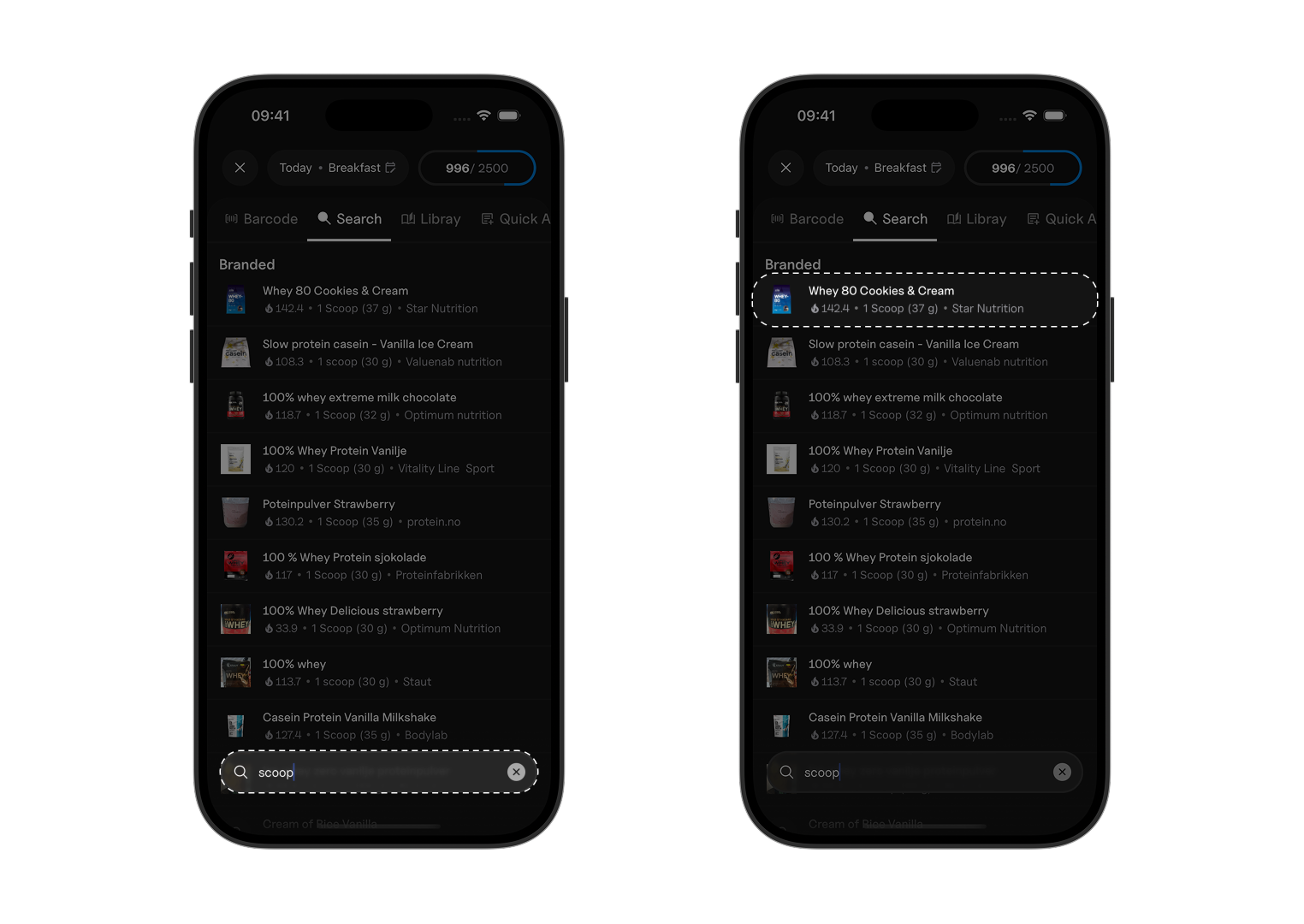
- Type the food name or brand into the search bar.
- Select the matching product from the search results to open the item detail view.
Choosing a Serving Size
To set the amount you consumed:
- Tap the serving size dropdown to see all available units (such as grams, milliliters, or portions).
- Select your preferred unit and enter the amount you consumed.
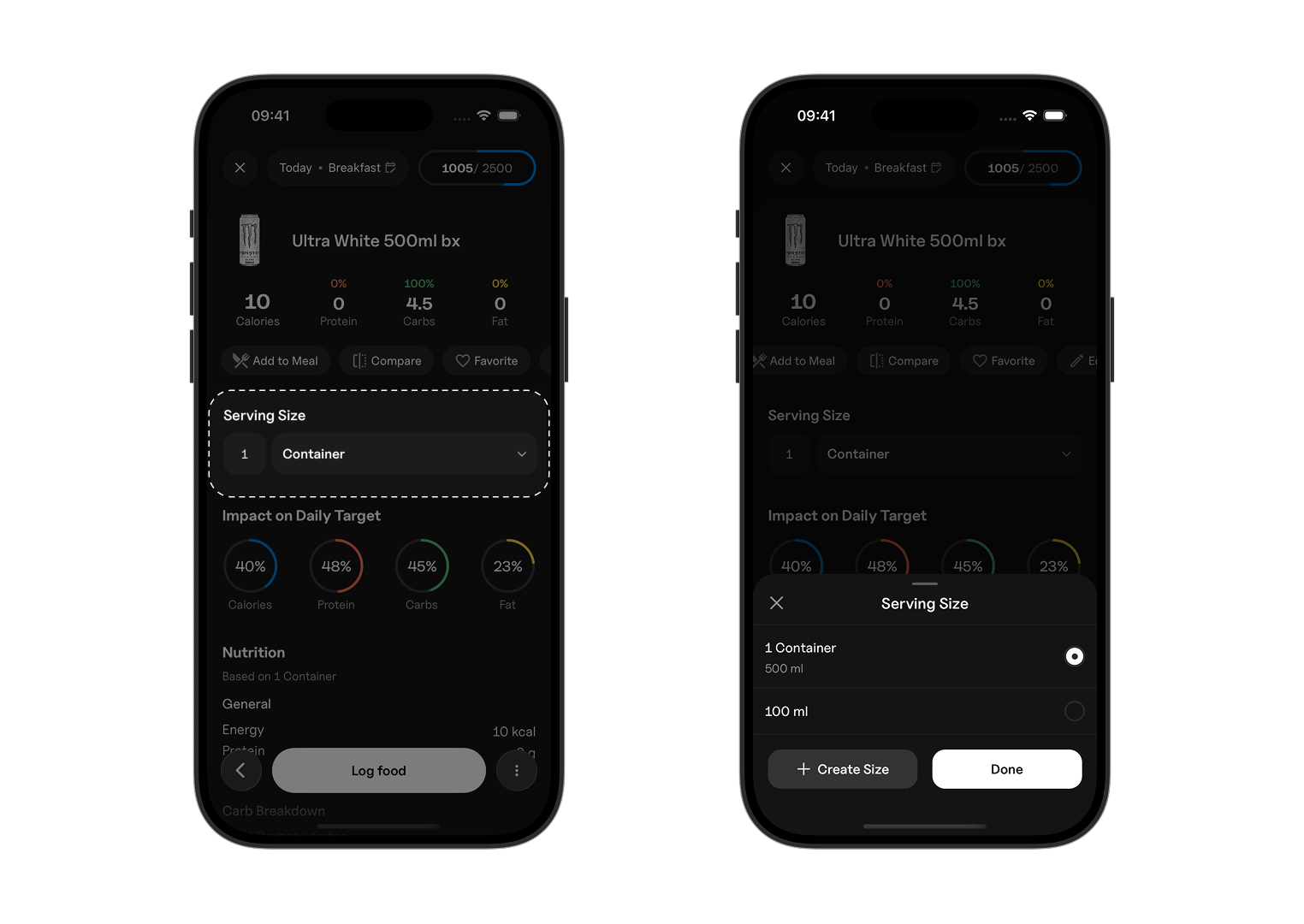
If the item only displays base units (100g or 100ml), you can adjust the weight directly or create a custom serving size.
Logging to a Different Meal or Date
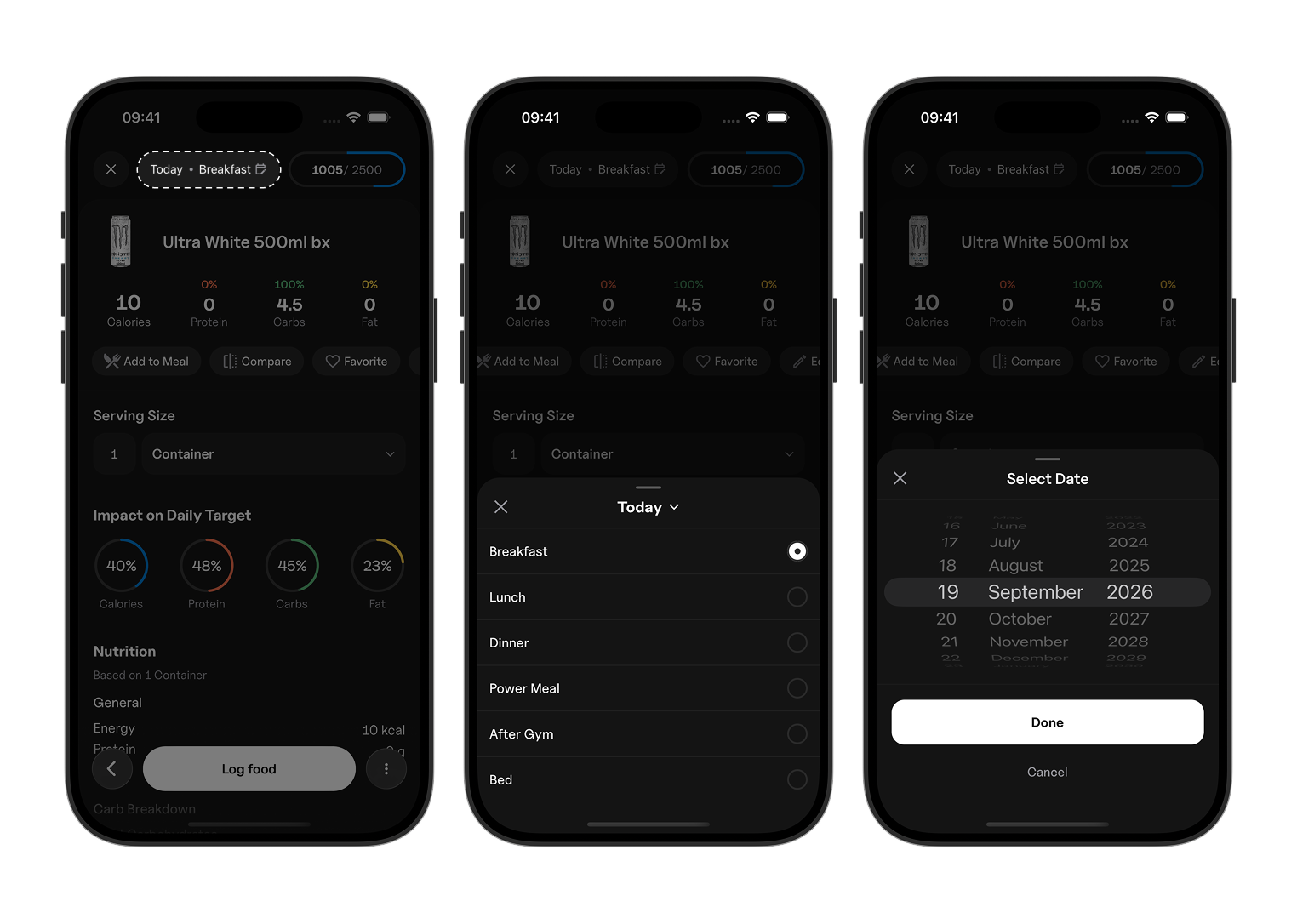
By default, items log to the current date and nearest meal. To change these settings:
- Tap the date bar at the top of the item detail screen.
- Select a target meal (for example, Breakfast, Lunch, or Dinner).
- Tap the date selector to pick a different day on the calendar.
Adding a Product to Your Food Log
Once your serving size, meal, and date are selected, you tap Log Food to save the entry to your diary.
When You Can't Find a Product
If a food item is not available in the database:
- Scan a barcode: Tap the barcode icon in the search bar to scan a physical label.
- Create a custom food: Go to Library > Custom Foods to add a new item manually.
- Quick Add: Use Quick Add to log total calories and macros without selecting a specific food item.