
How to share transparent workout data on Social Media
Learn how to save your workout as a transparent image and post it on top of your own photo.
You can share any workout in Gympal with a transparent background. Your stats will sit on top of your own photo, like a gym selfie, instead of on a solid block of color. This is perfect for Instagram Stories when you don't want to cover your picture.
Open the share screen
You can get to the share screen in two ways:
- After a workout: the share screen opens when you complete a workout
- From a past workout: tap the three dots on a completed workout, then tap Share workout
Save a transparent image
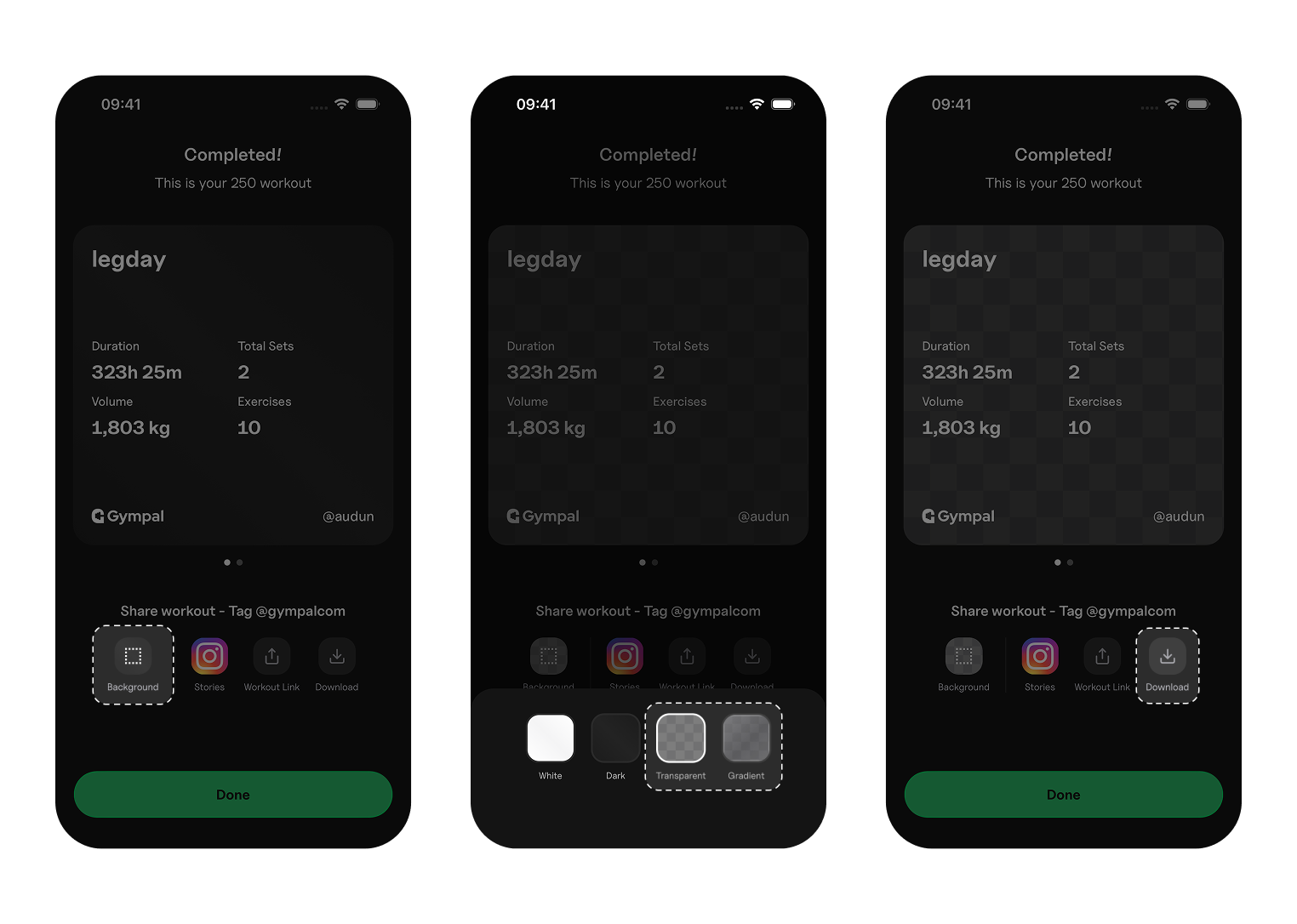
- In the share screen, tap Background
- Choose one of the two transparent options:
- Transparent has no background at all
- Gradient adds a soft fade behind your stats so they are easier to read on busy photos
- Swipe through the cards to choose the image you want
- Tap Download to save the image to your device
Add it to your Instagram story
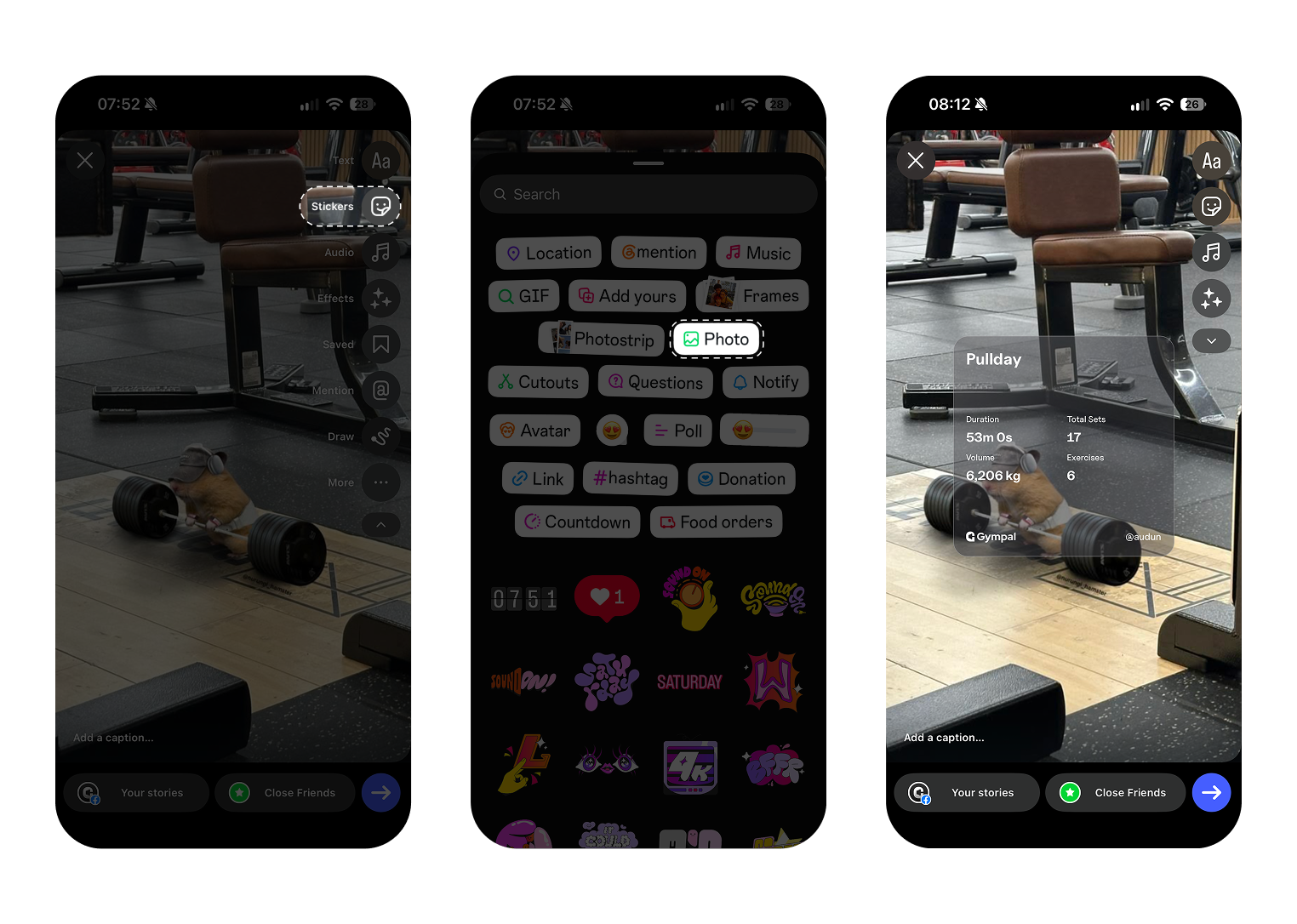
- Open Instagram and create a story with your photo
- Tap Stickers
- Tap Photo and select the image you saved from Gympal
- Move and resize the image until it sits where you want it
Tip: Tag @gympalcom when you share. We love seeing your workouts and might repost yours!