Compare Food Products

Compare food products side by side to see differences in macros and how each option affects your daily targets.

Compare Food Products

1. How to Compare Food Products

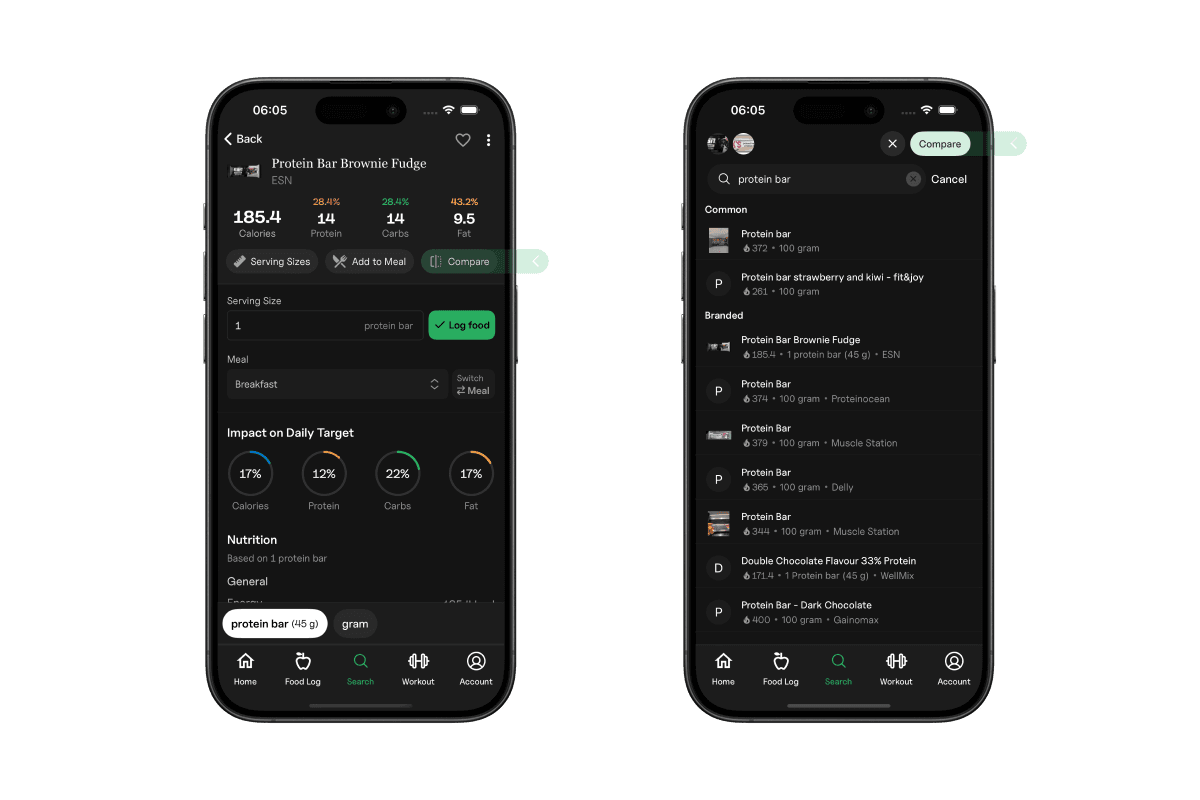
To compare foods, start by opening a food product and tapping Compare.

Then search for another product, open it, and tap Compare again.

Both products will appear above the search bar. When you’re ready, tap Compare to view them side by side.
Compare Food Products

2. What You Can Compare

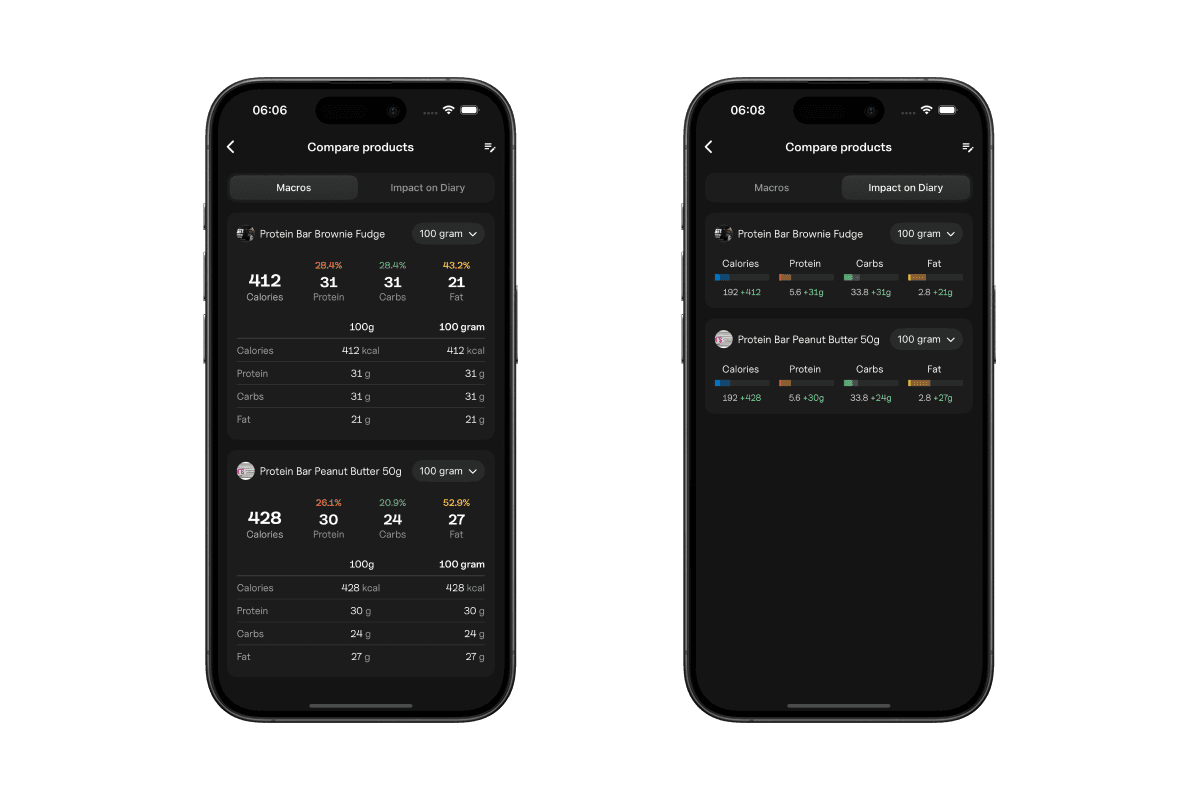
When viewing a comparison, Gympal shows two tabs:

  • Macros – View calories, protein, carbs, and fat for each product
  • Impact on Diary – See how each option affects your Daily Targets

By default, the left column always shows the product per 100 g/ml. The right column shows the product’s default serving size, and falls back to 100 g/ml if no other size is available.

Macros and Impact screen

3. Comparing Different Serving Sizes

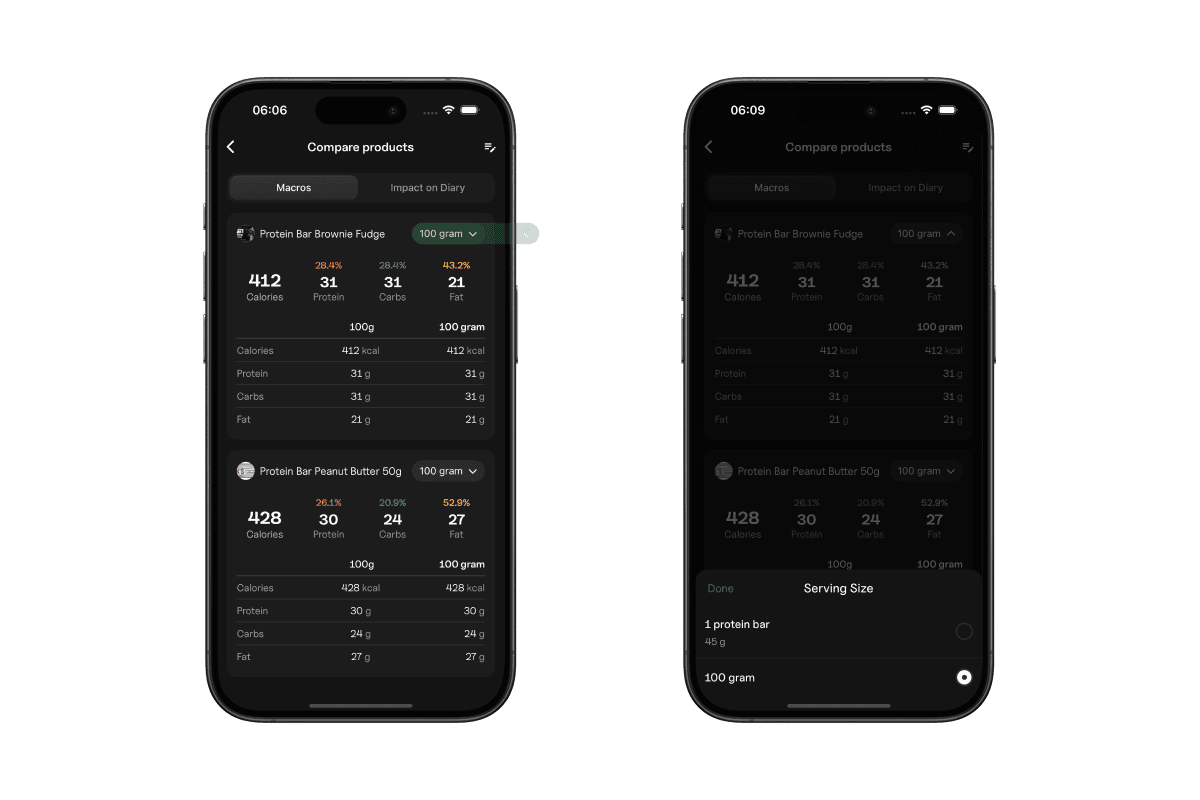
Some products include multiple serving sizes. To compare specific portions, tap the rounded size selector (highlighted in green) and choose the size you want to use.

The right column will update to reflect the selected serving size, making it easy to compare different portions side by side.

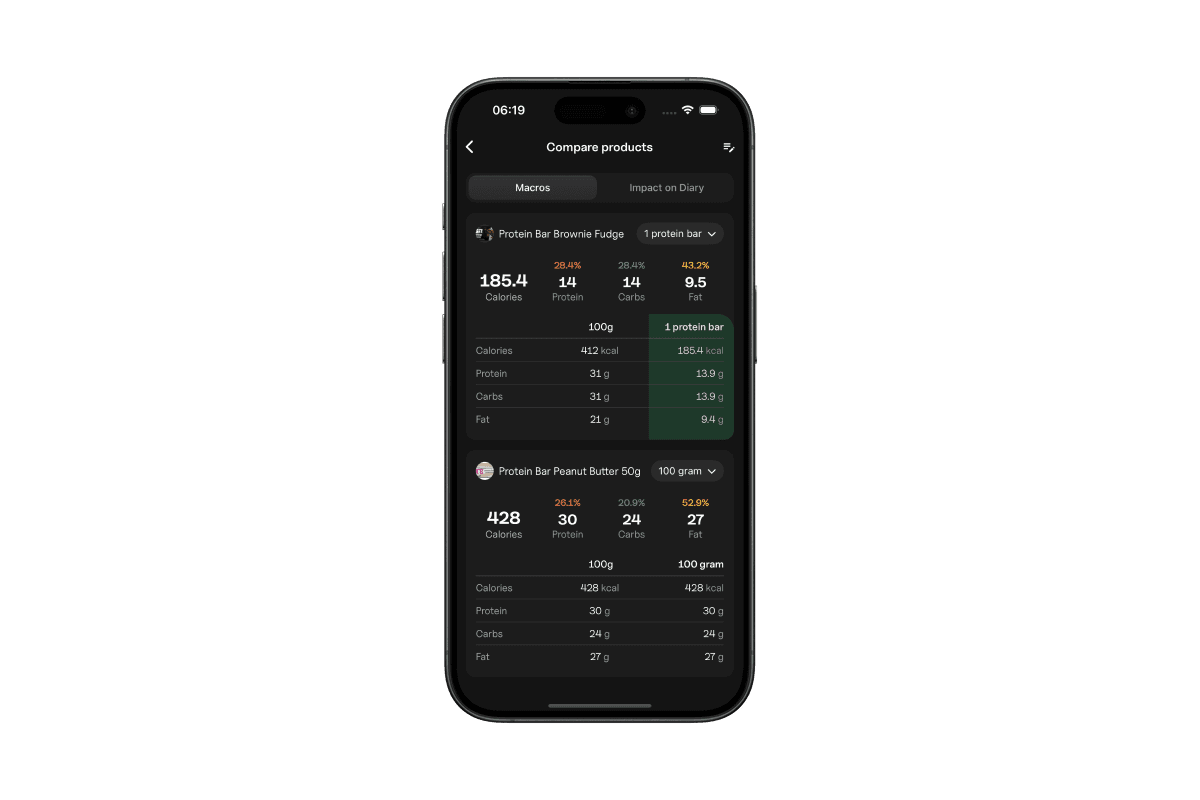
Comparing Products with Different Sizes

When a different size is selected, the macros for that size are shown in the right column.

Comparing Products with Different Sizes