1. Meals vs. Meal Sizes
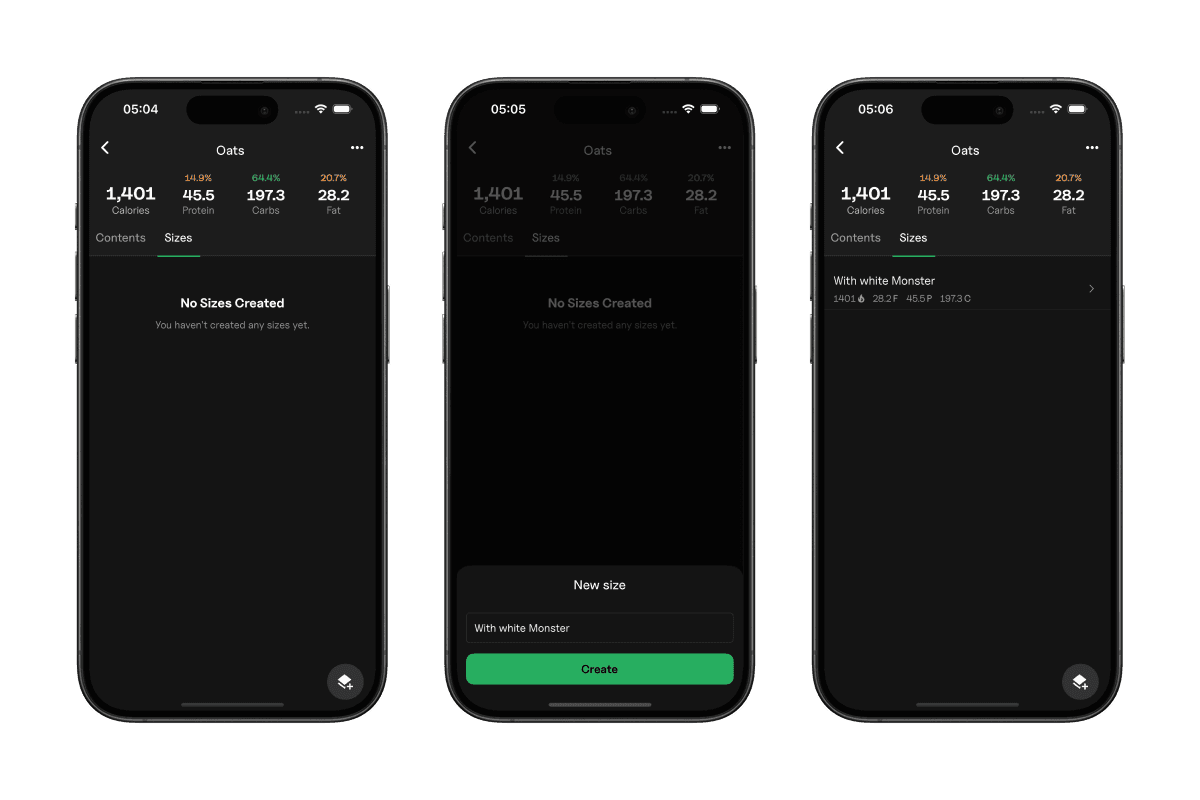
When you create a meal in Gympal, it starts with a Default Size.
You can add more sizes, like “Half,” “Regular,” or “Large”, by opening the meal and tapping the Sizes tab.
Meal sizes shouldn’t be confused with Custom Food Sizes
This makes it easy to log the same meal with different portion amounts without rebuilding it every time.
2. Syncing Custom Sizes with the Default size
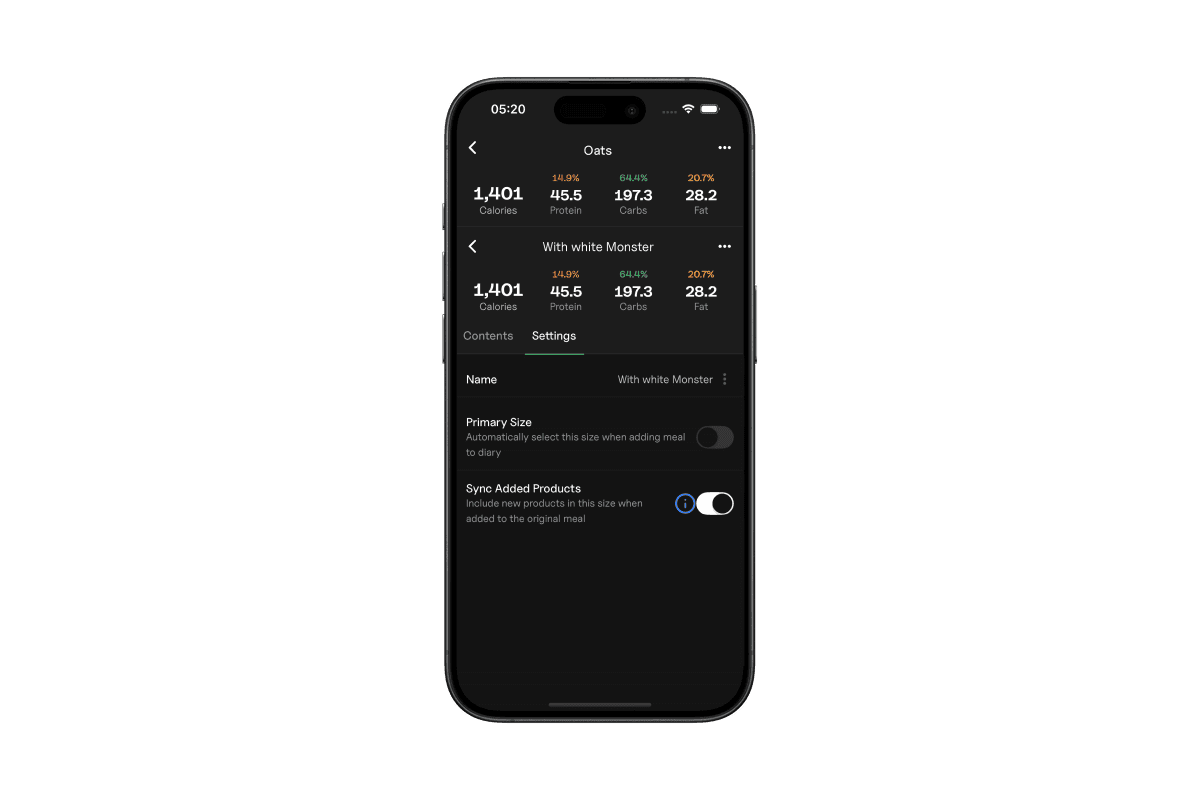
If your sizes are based on the main version, you should enable Sync Added Products.
When this is on, any new products you add to the default size is automatically added to your other sizes, keeping everything consistent.
3. Making a Size the Default
You can set any size as the primary one by enabling Primary Size.
This size will automatically be selected when you log the meal in your diary, making logging even faster.
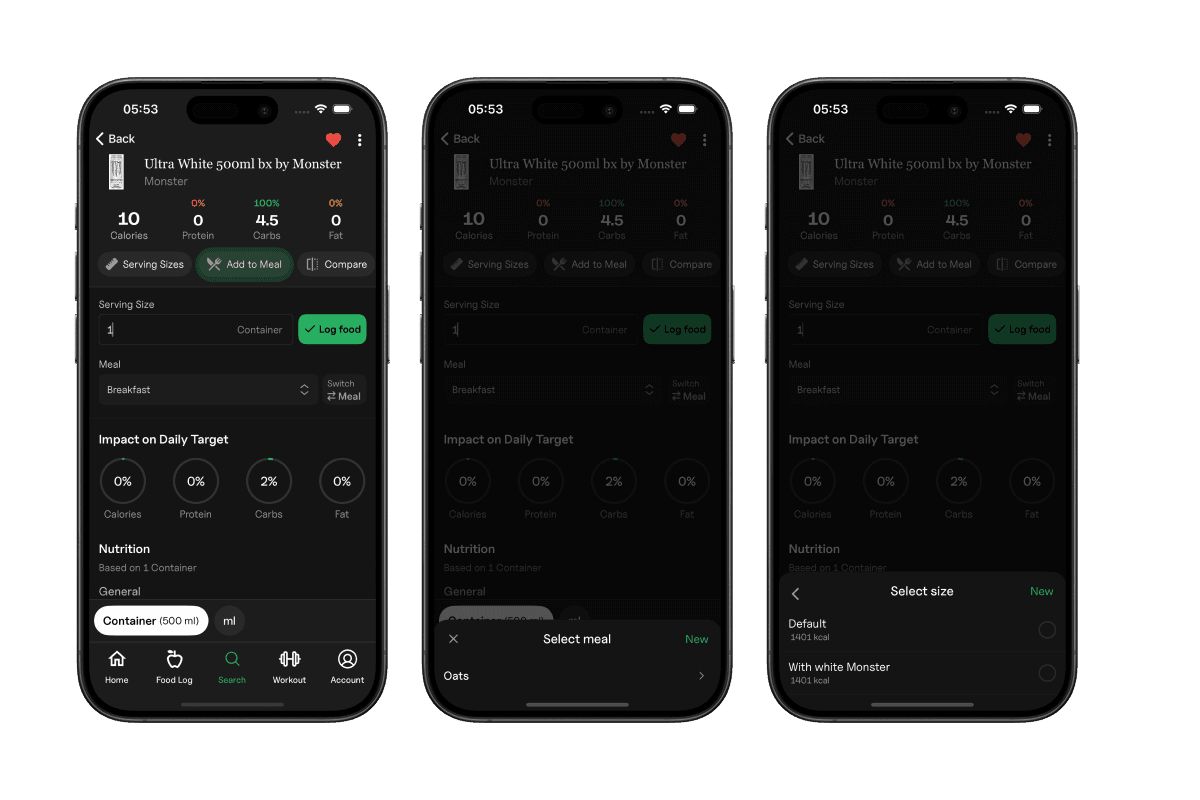
4. How to add entries to a Meal
Open any food product and tap Add to Meal, then choose the meal you want to update. All available sizes for that meal will be shown when you select it.